Form submission: We strongly encourage you to submit forms electronically via the Document Submission Portal. Forms may also be faxed or mailed to the SUNY Cortland Financial Aid Office.
Signing Documents Electronically
Forms required to be submitted to our office are available as PDF Fillable documents using Adobe Acrobat Reader. Forms must be signed and dated in order to be deemed valid.
Typed signatures, even if made to mimic a signature, or security certificate-based signatures are not accepted.
Typed signatures and digital IDs as pictured below are invalid and not accepted as signatures.
Examples of Unacceptable Signatures Below

Signatures must be hand-generated. Not typed or created by a computer.
Please follow the instructions below to electronically sign your PDF documents. If you experience difficulty signing electronically, please print and sign.
Sign Using a PC
1. Once the document is downloaded, open it as a PDF in Adobe Acrobat Reader.
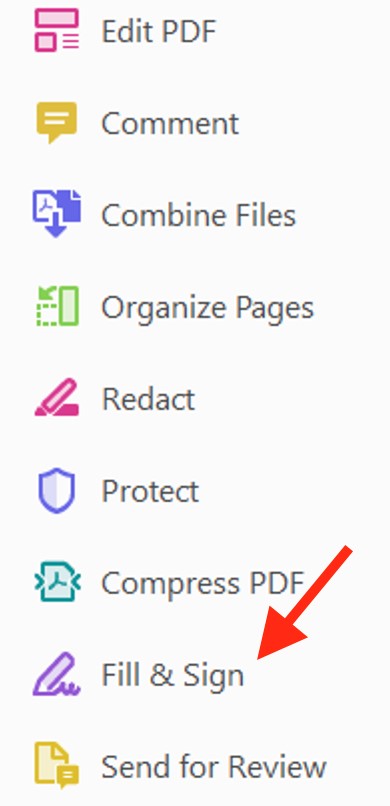
2. Click on Fill & Sign which is typically located on the right. Fill and Sign
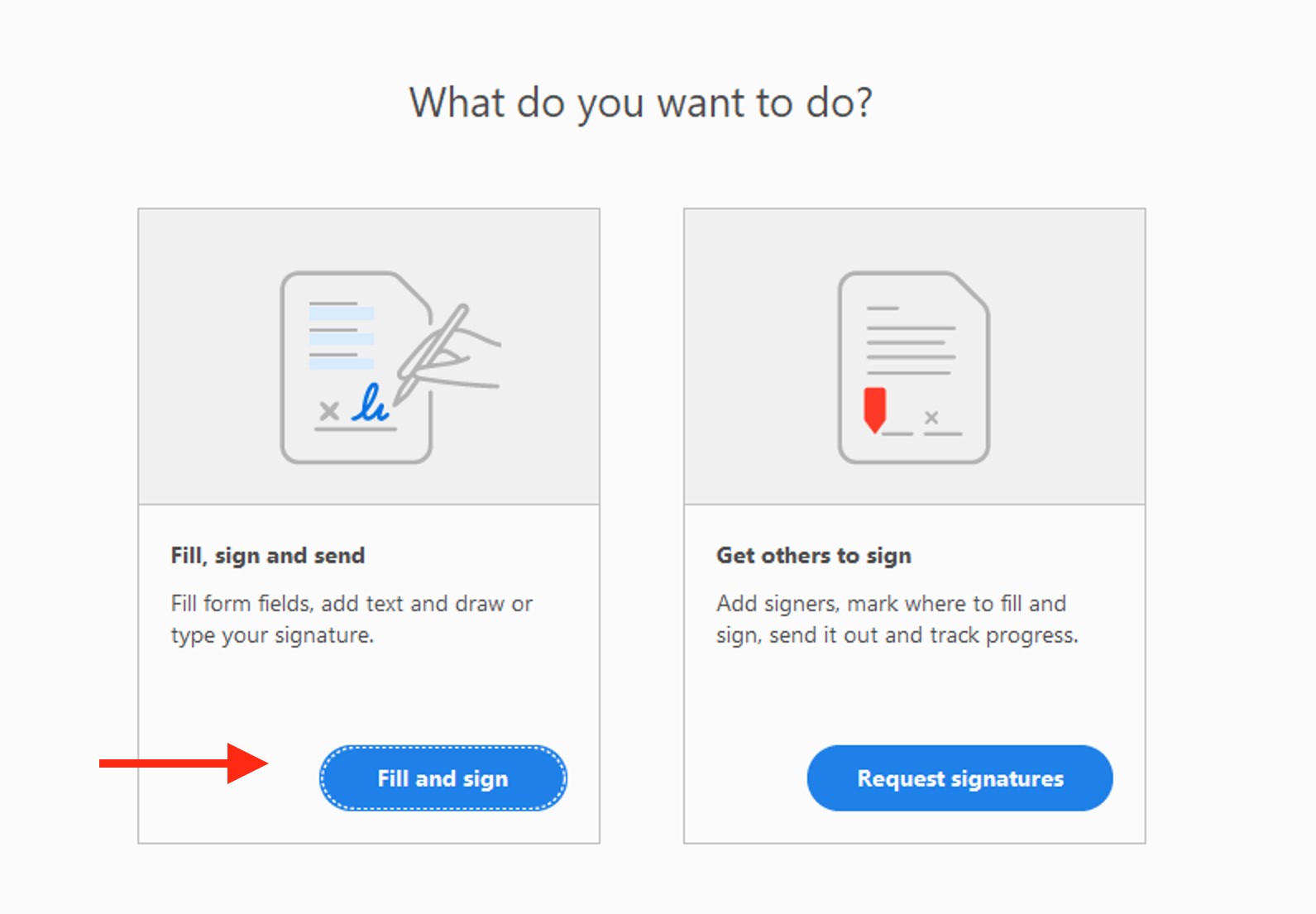
3. A new pop-up screen will appear, once this happens click on “Fill and sign.” Fill and Sign
4. You will then be directed back to the PDF. Click on the pen icon at the top of the page and then click on “add signature.” Sign with Pen Logo

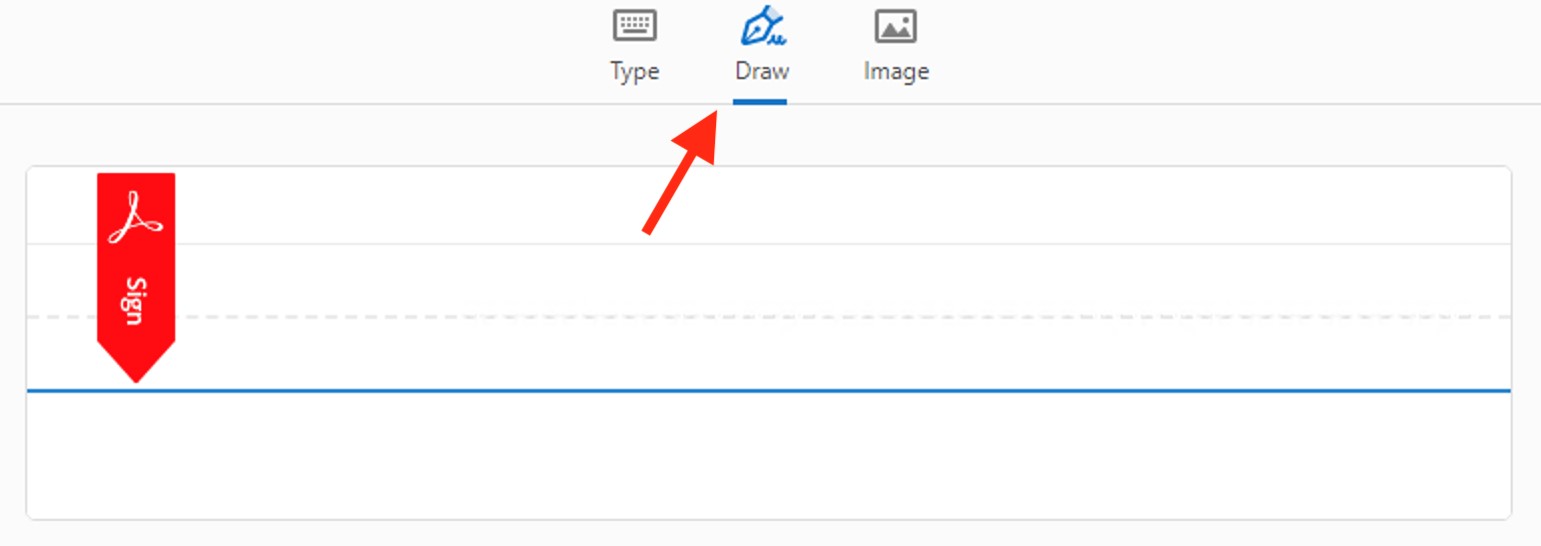
5. Once a signature screen appears, click on the pen icon to draw your signature. DRAW YOUR SIGNATURE, DO NOT TYPE Select Draw
DRAW YOUR SIGNATURE, DO NOT TYPE
6. Once your signature is drawn, click "Apply" below your signature.
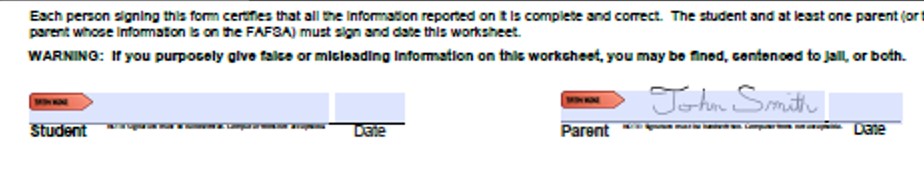
7. Your signature can then be moved to the designated signature panel. Signature Location
Sign Using a Mac
1. Once the document is downloaded, open it as a PDF in Adobe Acrobat Reader in Preview.
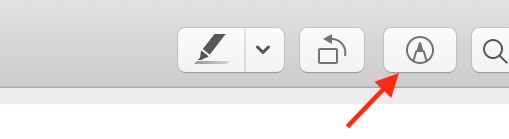
2. Click on the pen icon located at the top-right. Pen Icon Top Right
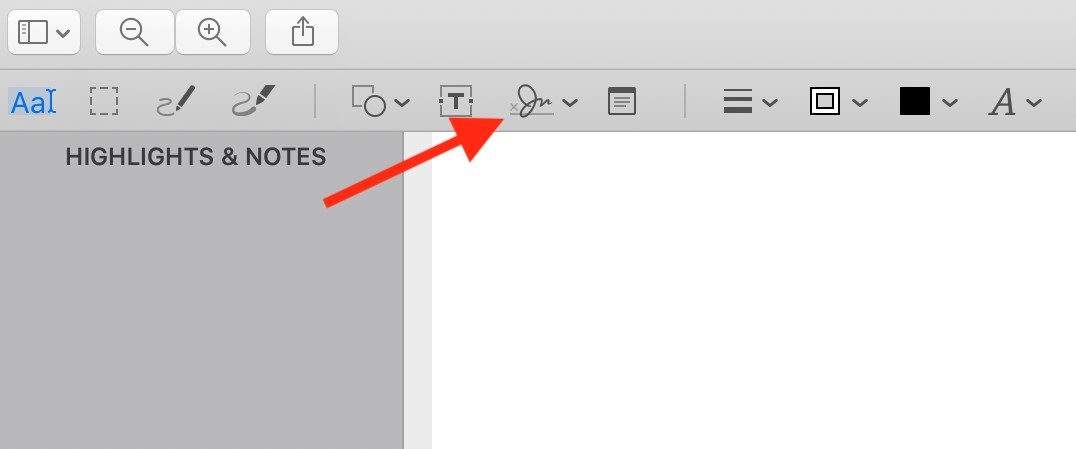
3. Click on the signature icon. Signature Icon
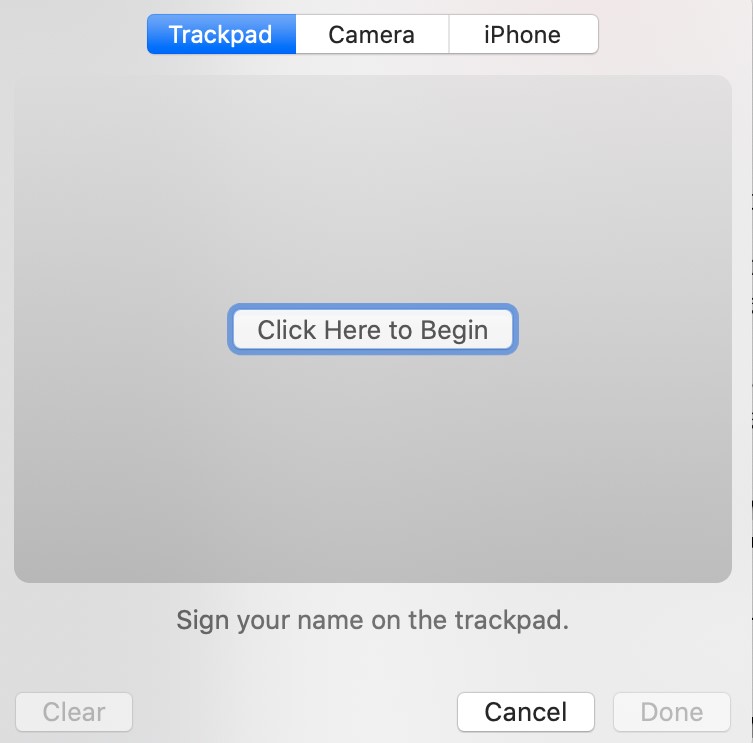
4. A large grey box appear will appear, select the option you would like to use to create your signature.
- If you choose to use the trackpad, click “Click Here to Begin.”
-
- Once you are done signing your name on the track pad, click “Done”
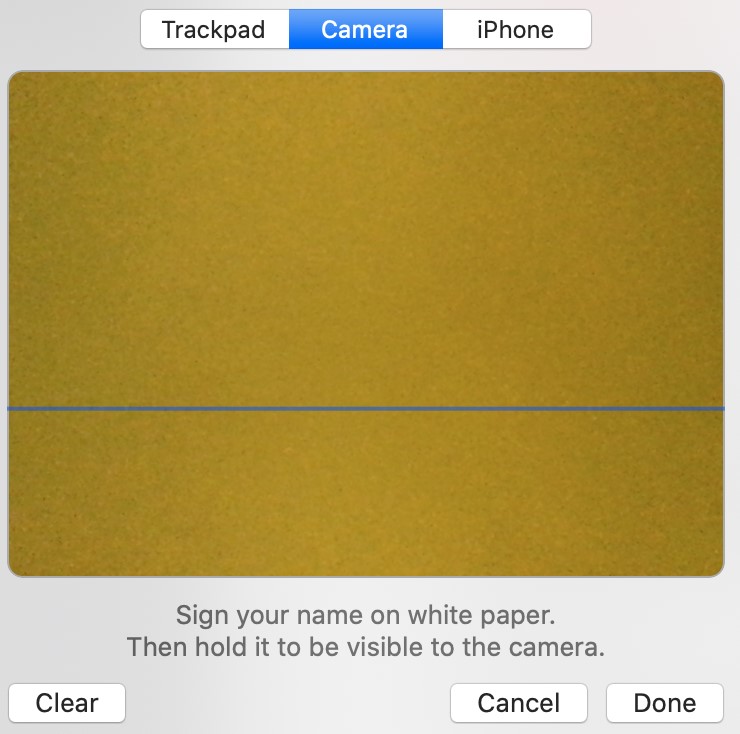
- If you choose to use the camera option, click on “Camera” at the top.
-
- Physically sign your name on a blank white paper, hold it so it is visible to the camera, and then click “Done.”
5. Your signature will appear under the “signature” icon Signature Created
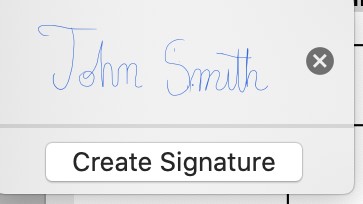
6. Click on the designated signature until it appears on the PDF. (Do not click the “x”, that will delete your signature). Drag the selected signature to the designated signature location on the page.

Financial Aid Forms (Summer 2026 | Fall 2026 | Spring 2027)
Verification Forms:
If requested, complete the form that corresponds with dependency status on your FAFSA.
- Dependent Verification Worksheet form 2026-2027 (PDF)
- Independent Verification Worksheet form 2026-2027 (PDF)
Other Financial Aid Forms:
- Statement of Educational Purpose form 2026-2027 (PDF)
- Summer Financial Aid Application (Opens April 1st 2026)
- Financial Aid Terms and Conditions form 2026-2027 (PDF)
Financial Aid Appeal Applications:
- Special Circumstance Appeal
- Satisfactory Academic Progress (SAP) Appeal Form 2026-2027 (PDF)
- Excelsior Scholarship Eligibility Appeal Form 2026-2027 (PDF)
Financial Aid Forms (Summer 2025 | Fall 2025 | Spring 2026)
Verification Forms:
If requested, complete the form that corresponds with dependency status on your FAFSA.
- Dependent Verification Worksheet form 2025-2026 (PDF)
- Independent Verification Worksheet form 2025-2026 (PDF)
Other Financial Aid Forms:
- Statement of Educational Purpose form 2025-2026 (PDF)
- Financial Aid Terms and Conditions form 2025-2026 (PDF)