Using myRedDragon to Register Online
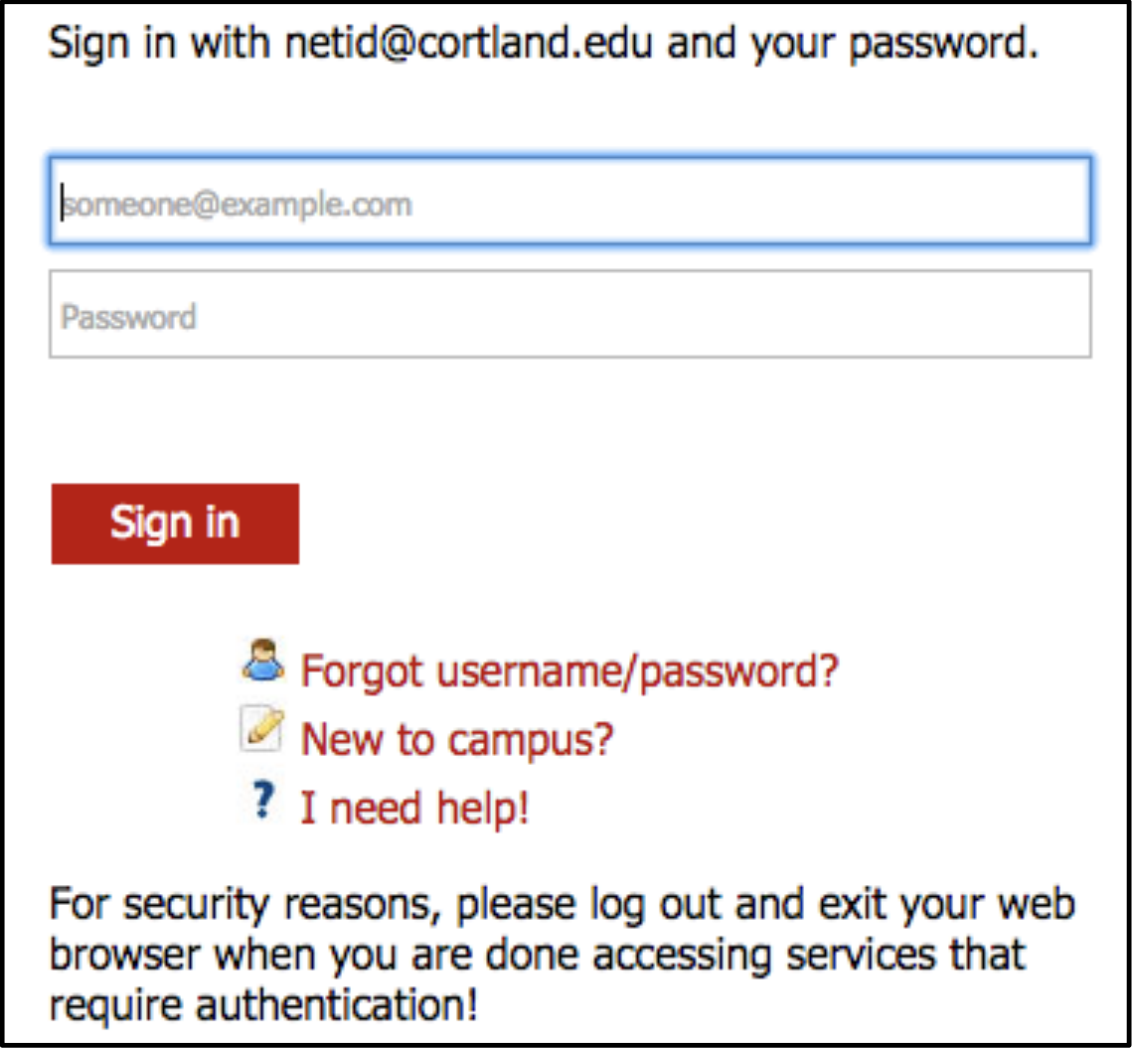
- Enter your username and password on the login page. If you do not have a password, or you are unable to access the portal, contact The Help Center at 607-753-2500 or via THC@cortland.edu.
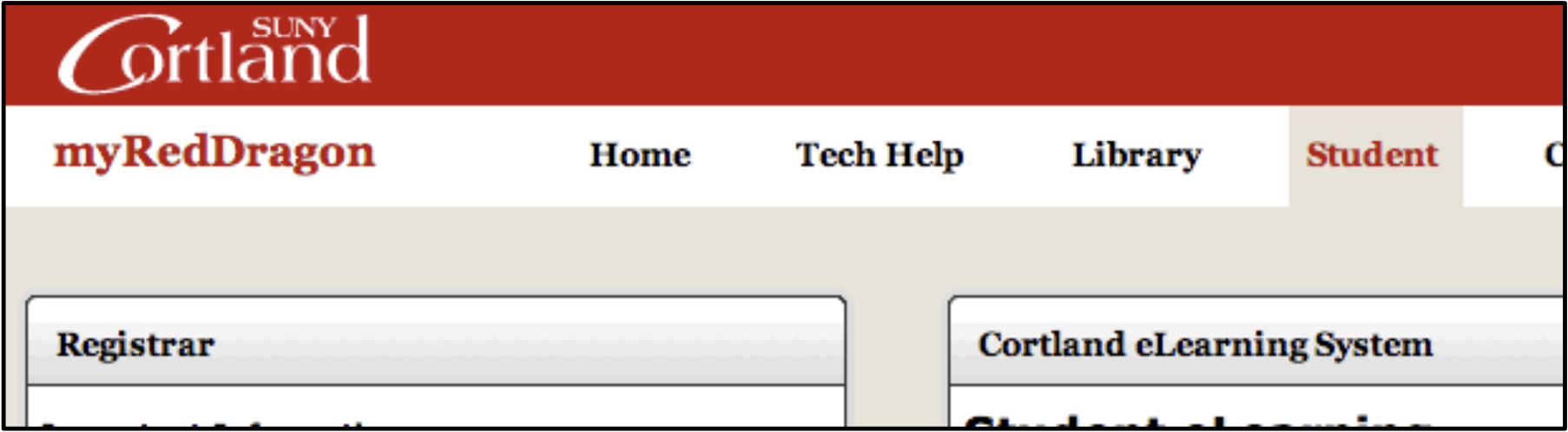
- After you sign in, Select the "Student" tab and navigate to the Registrar Channel (on the left side of the screen).
- Select "Register or Drop & Add Courses" to begin registration.
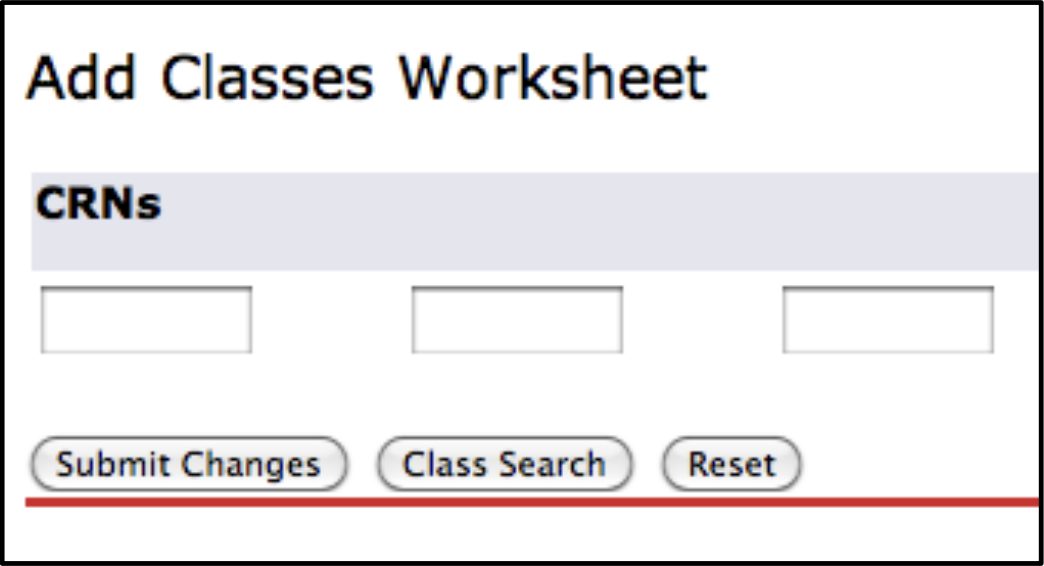
- Enter the CRN for each of your course selections in the "Add Classes Worksheet" area on the registration worksheet.
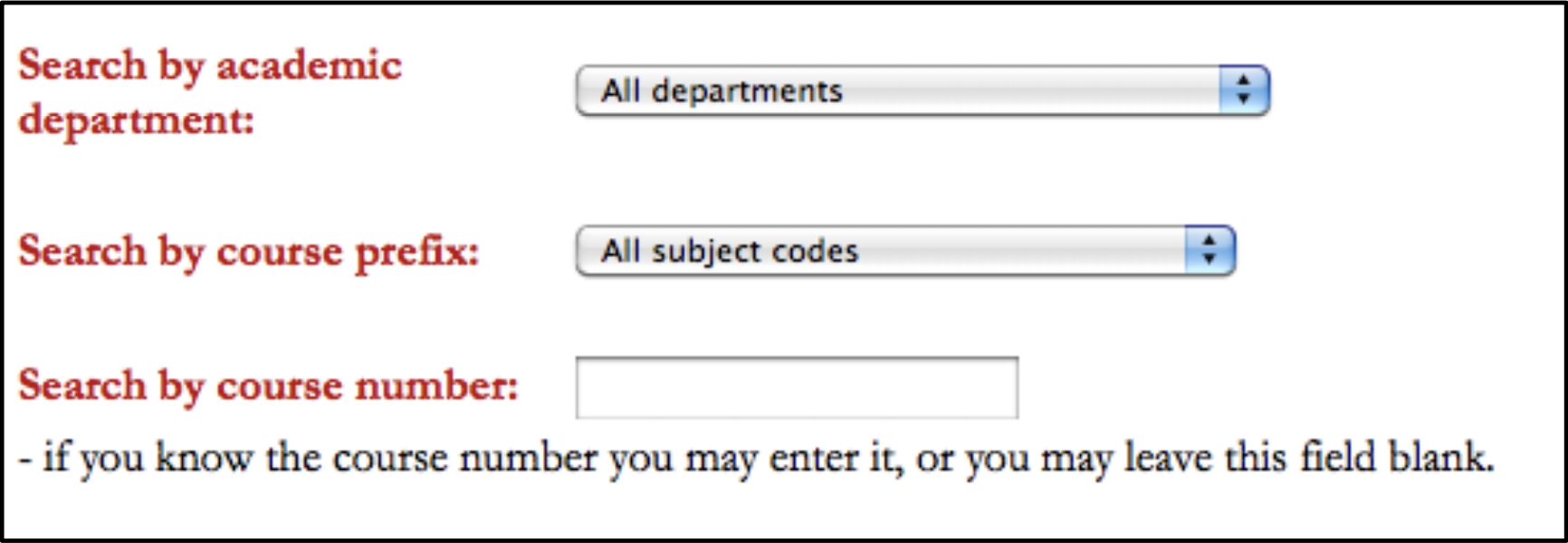
- The CRN may be found on the searchable public schedule of classes. You may use any combination of attributes to search for courses using the public schedule (course prefix, course number, department etc.).
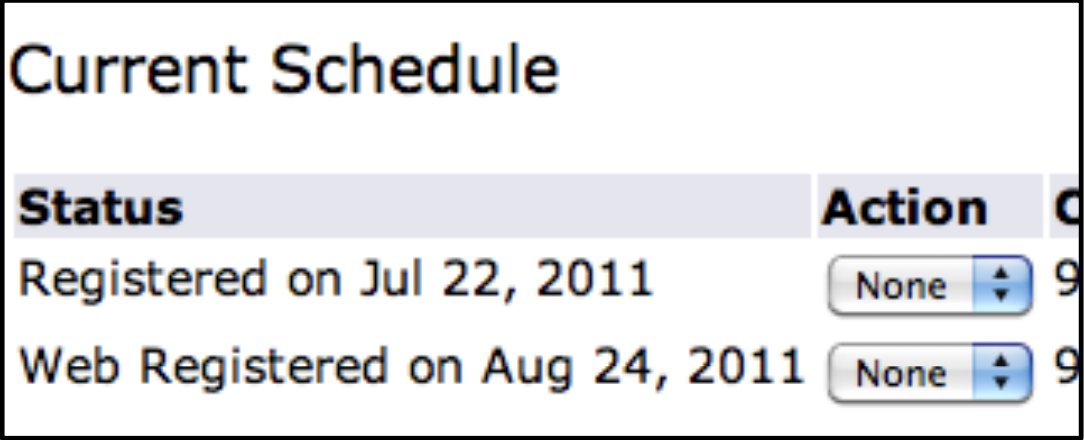
- Select "Submit Changes" after you have entered the CRN. Courses you have successfully registered for, and any errors that prevent a successful registration, will be displayed under the "Current Schedule" heading. Try to resolve your registration errors if possible. You may need to contact an academic department to seek permission to enter a course.
Additional Search Tools
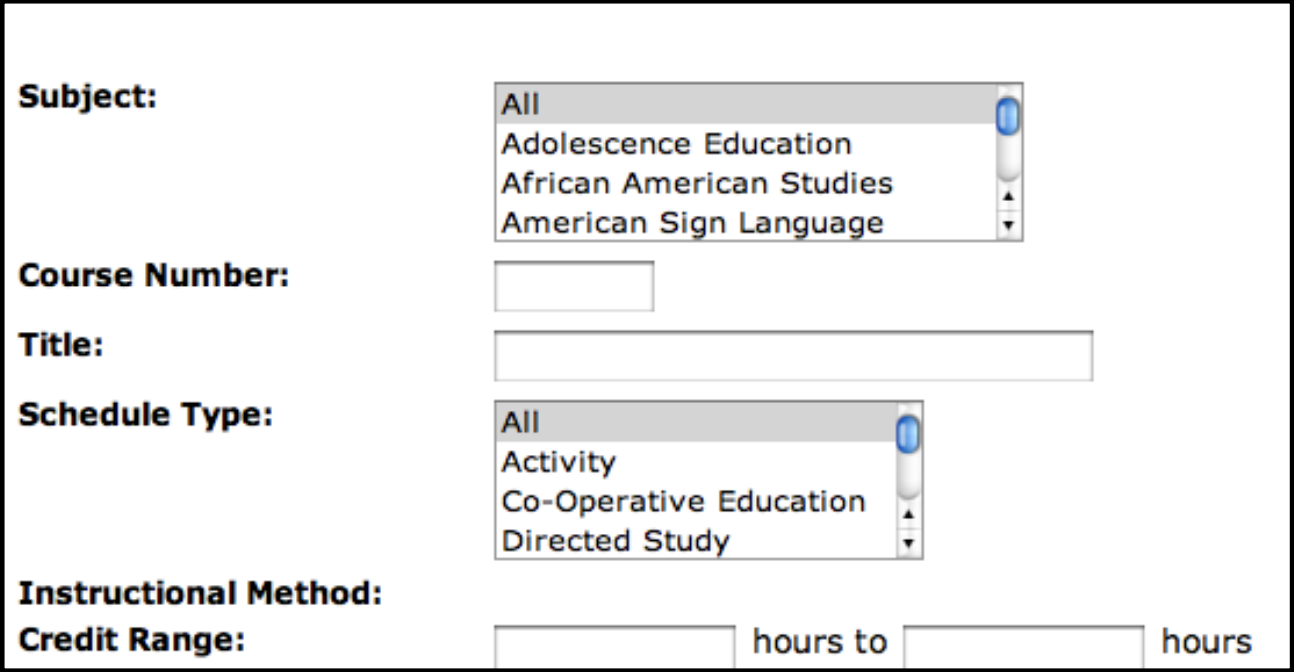
- In addition to directly entering the CRN, you may also search for courses within myRedDragon by selecting "Class Search" at the bottom of the registration worksheet. You may use any combination of attributes and search fields to search for courses via the search screen (see below).

- The search results page will let you select the course you would like to add to your schedule. If the course is open for registration, a checkbox will be available (see below). If the course is closed or unavailable you will see a "C" (closed) note, as opposed to a checkbox.
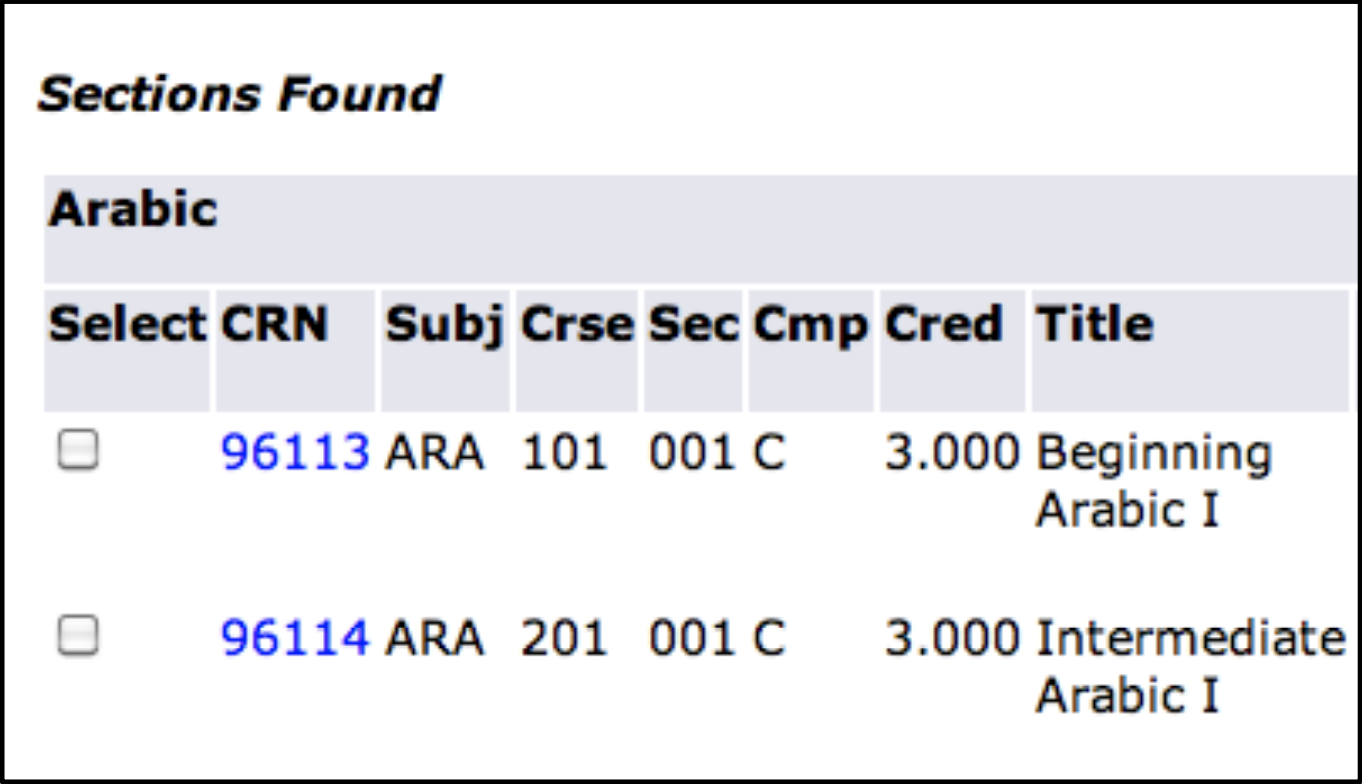
- When you are complete, you may click "Register" to process course registration.

- Courses you have successfully registered for, and any errors that prevent a successful registration, will be displayed. Carefully check your registration for accuracy.
Dropping (Removing) a Course
If you determine that you do not wish to take a course, or wish to replace a course with another, you may drop the course using the registration system online while the web remains open.
- Select “Register or Drop & Add Courses” within myRedDragon.
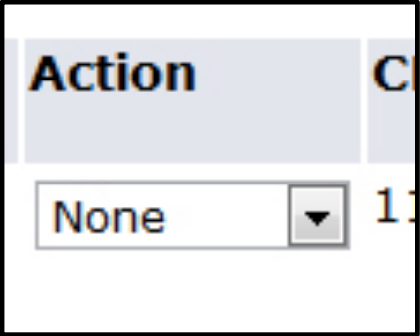
- On the resulting page, select the “Drop” function next to the course you wish to drop.
- Press “Submit Changes”.

- Be assured the course is removed when the page refreshed.